Debugging HDMI monitors (remotely)
This post covers techniques to debug HDMI monitor issues when you don’t have access to the monitor itself.
What’s the issue?
Many HDMI monitors work fine with standard resolutions/timings, but some need specific attention, and it’s hard to validate them all before delivering a device.
The cause is often an unsupported output clock frequency, especially with bridges (e.g. MIPI-DSI to HDMI) that only support a limited set of frequencies.
So the first step is to find out what timings the display expects by reading its EDID.
EDID information
As Wikipedia puts it: Extended Display Identification Data (EDID) is a metadata format for display devices to describe their capabilities to a video source. The data format is defined by a standard published by the Video Electronics Standards Association (VESA).
What’s interesting for us is that EDID resides on an EEPROM located at address 0x50 over Display Data Channel (DDC) lines.
DDC messages are using I²C protocol so the Linux i2c-tools can be used to manipulate the EDID as needed.
Getting the EDID
For Linux users, I recommend using the edid-decode tool which decodes the sysfs entries:
$ sudo apt install edid-decode
$ find /sys/ -name edid -exec edid-decode {} \;
Here is what an actual EDID can look like:
Sample EDID
edid-decode (hex):

00 ff ff ff ff ff ff 00 1e 6d 66 78 39 01 00 00
13 24 01 03 80 50 21 78 ee 9a d5 ae 4e 4b a9 26
0b 50 54 21 08 00 d1 c0 01 01 01 01 01 01 01 01
01 01 01 01 01 01 48 d5 70 b0 d0 a0 46 50 30 20
3a 00 20 4e 31 00 00 1a 00 00 00 fd 00 30 64 46
9a 38 00 0a 20 20 20 20 20 20 00 00 00 fc 00 4c
47 20 55 4c 54 52 41 57 49 44 45 0a 00 00 00 ff
00 36 30 35 42 4e 57 42 30 39 33 31 33 0a 01 a4

02 03 33 b2 4b 61 60 04 03 01 5b 5a 59 1f 12 10
67 03 0c 00 10 00 b8 44 68 d8 5d c4 01 78 80 03
00 e3 0f 03 00 e3 05 c0 00 e2 00 6a e6 06 05 01
51 51 2e e2 b3 70 b0 d0 a0 3b 50 30 20 3a 00 20
4e 31 00 00 1a 01 68 70 b0 d0 a0 22 50 30 20 3a
00 20 4e 31 00 00 1a 00 00 00 00 00 00 00 00 00
00 00 00 00 00 00 00 00 00 00 00 00 00 00 00 00
00 00 00 00 00 00 00 00 00 00 00 00 00 00 00 88

----------------

Block 0, Base EDID:
  EDID Structure Version & Revision: 1.3
  Vendor & Product Identification:
    Manufacturer: GSM
    Model: 30822
    Serial Number: 313
    Made in: week 19 of 2026
  Basic Display Parameters & Features:
    Digital display
    Maximum image size: 80 cm x 33 cm
    Gamma: 2.20
    DPMS levels: Standby Suspend Off
    RGB color display
    Default (sRGB) color space is primary color space
    First detailed timing is the preferred timing
  Color Characteristics:
    Red  : 0.6816, 0.3056
    Green: 0.2949, 0.6621
    Blue : 0.1513, 0.0439
    White: 0.3134, 0.3291
  Established Timings I & II:
    DMT 0x04:   640x480    59.940476 Hz   4:3     31.469 kHz     25.175000 MHz
    DMT 0x09:   800x600    60.316541 Hz   4:3     37.879 kHz     40.000000 MHz
    DMT 0x10:  1024x768    60.003840 Hz   4:3     48.363 kHz     65.000000 MHz
  Standard Timings:
    DMT 0x52:  1920x1080   60.000000 Hz  16:9     67.500 kHz    148.500000 MHz
  Detailed Timing Descriptors:
    DTD 1:  3440x1440   99.997070 Hz  43:18   150.996 kHz    546.000000 MHz (800 mm x 334 mm)
                 Hfront   48 Hsync  32 Hback   96 Hpol P
                 Vfront    3 Vsync  10 Vback   57 Vpol N
    Display Range Limits:
      Monitor ranges (GTF): 48-100 Hz V, 70-154 kHz H, max dotclock 560 MHz
    Display Product Name: 'LG ULTRAWIDE'
    Display Product Serial Number: '605BNWB09313'
  Extension blocks: 1
Checksum: 0xa4

----------------

Block 1, CTA-861 Extension Block:
  Revision: 3
  Underscans IT Video Formats by default
  Supports YCbCr 4:4:4
  Supports YCbCr 4:2:2
  Native detailed modes: 2
  Video Data Block:
    VIC  97:  3840x2160   60.000000 Hz  16:9    135.000 kHz    594.000000 MHz
    VIC  96:  3840x2160   50.000000 Hz  16:9    112.500 kHz    594.000000 MHz
    VIC   4:  1280x720    60.000000 Hz  16:9     45.000 kHz     74.250000 MHz
    VIC   3:   720x480    59.940060 Hz  16:9     31.469 kHz     27.000000 MHz
    VIC   1:   640x480    59.940476 Hz   4:3     31.469 kHz     25.175000 MHz
    VIC  91:  2560x1080  100.000000 Hz  64:27   125.000 kHz    371.250000 MHz
    VIC  90:  2560x1080   60.000000 Hz  64:27    66.000 kHz    198.000000 MHz
    VIC  89:  2560x1080   50.000000 Hz  64:27    56.250 kHz    185.625000 MHz
    VIC  31:  1920x1080   50.000000 Hz  16:9     56.250 kHz    148.500000 MHz
    VIC  18:   720x576    50.000000 Hz  16:9     31.250 kHz     27.000000 MHz
    VIC  16:  1920x1080   60.000000 Hz  16:9     67.500 kHz    148.500000 MHz
  Vendor-Specific Data Block (HDMI), OUI 00-0C-03:
    Source physical address: 1.0.0.0
    Supports_AI
    DC_36bit
    DC_30bit
    DC_Y444
    Maximum TMDS clock: 340 MHz
  Vendor-Specific Data Block (HDMI Forum), OUI C4-5D-D8:
    Version: 1
    Maximum TMDS Character Rate: 600 MHz
    SCDC Present
    Supports 12-bits/component Deep Color 4:2:0 Pixel Encoding
    Supports 10-bits/component Deep Color 4:2:0 Pixel Encoding
  YCbCr 4:2:0 Capability Map Data Block:
    VIC  97:  3840x2160   60.000000 Hz  16:9    135.000 kHz    594.000000 MHz
    VIC  96:  3840x2160   50.000000 Hz  16:9    112.500 kHz    594.000000 MHz
  Colorimetry Data Block:
    BT2020YCC
    BT2020RGB
  Video Capability Data Block:
    YCbCr quantization: No Data
    RGB quantization: Selectable (via AVI Q)
    PT scan behavior: Always Underscanned
    IT scan behavior: Always Underscanned
    CE scan behavior: Always Underscanned
  HDR Static Metadata Data Block:
    Electro optical transfer functions:
      Traditional gamma - SDR luminance range
      SMPTE ST2084
    Supported static metadata descriptors:
      Static metadata type 1
    Desired content max luminance: 81 (289.036 cd/m^2)
    Desired content max frame-average luminance: 81 (289.036 cd/m^2)
    Desired content min luminance: 46 (0.094 cd/m^2)
  Detailed Timing Descriptors:
    DTD 2:  3440x1440   84.957081 Hz  43:18   127.351 kHz    460.500000 MHz (800 mm x 334 mm)
                 Hfront   48 Hsync  32 Hback   96 Hpol P
                 Vfront    3 Vsync  10 Vback   46 Vpol N
    DTD 3:  3440x1440   49.953246 Hz  43:18    73.631 kHz    266.250000 MHz (800 mm x 334 mm)
                 Hfront   48 Hsync  32 Hback   96 Hpol P
                 Vfront    3 Vsync  10 Vback   21 Vpol N
Checksum: 0x88
For Windows users, the Monitor Asset Manager works well.
Other options
Well, sometimes it’s hard to get that information from the customers and all we get is a hardware model.
In that case, the Linux Hardware Project can be a valuable option.
This repository includes no less than 174k monitors’ EDID files!
Note that those EDIDs are already decoded and provided as text files, like the sample EDID above, so here is a useful website that will convert the hex data into a binary file:
Testing without monitor
At this point you have the EDID of the problematic monitor, what can be done with it as we still don’t have access to the monitor?
Kernel parameters
The kernel allows you to override the EDID for a specific connector by adding its binary to the /lib/firmware folder and specifying its name as a kernel parameter, see documentation:
For those using U-Boot, it can easily be added to the bootargs:
setenv bootargs $bootargs drm.edid_firmware=HDMI-A-1:myedid.bin
This approach works ok but has a few limitations:
- Requires modifying the image to debug the behavior
- Can be problematic on Android for instance
- Only allows to test one EDID per boot
- Doesn’t allow dynamic plug/unplug debugging
- Doesn’t always play nicely with bridges
HDMI dummy plug
So I looked at another approach which is to use HDMI dummy plugs. Those can be easily found on Amazon at a cheap price and can be re-programmed to include any EDID of your choice.
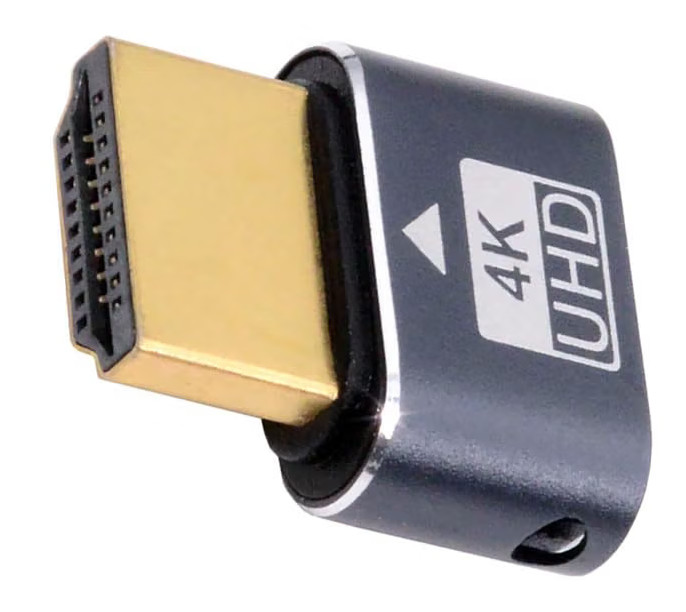
Some use RPi devices to write the EEPROM, I decided to rely on my laptop instead. First step is to discover which /dev/i2c-* device matches your HDMI port:
$ grep DRIVER /sys/class/drm/*HDMI*/device/device/uevent
DRIVER=nvidia
$ for i in /sys/class/i2c-dev/i2c-*; do echo "$(basename $i): $(cat $i/name)" | grep -i nvidia; done
i2c-16: NVIDIA i2c adapter 1 at 1:00.0
i2c-17: NVIDIA i2c adapter 3 at 1:00.0
i2c-18: NVIDIA i2c adapter 5 at 1:00.0
i2c-19: NVIDIA i2c adapter 6 at 1:00.0
Then using i2cdetect on the different ports, I realized that i2c-18 was mapped to the HDMI port. All that is left to do is to flash a binary to the HDMI plug. For that I used the write-edid.sh from ChalkElec.
But before writing anything, double-check the bus number: flashing the wrong /dev/i2c-* device could overwrite another EEPROM or device on that bus.
./write-edid.sh 18 edid.bin
Finally I could mimic plugging/unplugging the same display a customer was having trouble with.
Then what?
Then you will be able to check what the DRM driver is seeing/filtering thanks to the libdrm-tests:
# modetest -c | grep DSI -A 10
32	31	connected	DSI-1          	800x330		4	31
  modes:
	index name refresh (Hz) hdisp hss hse htot vdisp vss vse vtot
  #0 2560x1080 59.94 2560 2808 2852 3000 1080 1084 1089 1100 197802 flags: phsync, pvsync; type: driver
  #1 1920x1080 59.94 1920 2008 2052 2200 1080 1084 1089 1125 148352 flags: phsync, pvsync; type: driver
  #2 1280x720 59.94 1280 1390 1430 1650 720 725 730 750 74176 flags: phsync, pvsync; type: driver
  #3 720x480 60.00 720 736 798 858 480 489 495 525 27027 flags: nhsync, nvsync; type: driver
This proved the issue was that the resolution the customer needed (3440x1440) was filtered out.
Since in this case I was using a MIPI-DSI to HDMI bridge (the Lontium LT9611UXD), the timings needed to be added to the allowed list in order to unlock all the resolutions:
# modetest -c | grep DSI -A 10
32	31	connected	DSI-1          	800x330		5	31
  modes:
	index name refresh (Hz) hdisp hss hse htot vdisp vss vse vtot
  #0 3440x1440 49.95 3440 3488 3520 3616 1440 1443 1453 1474 266250 flags: phsync, nvsync; type: driver
  #1 2560x1080 59.94 2560 2808 2852 3000 1080 1084 1089 1100 197802 flags: phsync, pvsync; type: driver
  #2 1920x1080 59.94 1920 2008 2052 2200 1080 1084 1089 1125 148352 flags: phsync, pvsync; type: driver
  #3 1280x720 59.94 1280 1390 1430 1650 720 725 730 750 74176 flags: phsync, pvsync; type: driver
  #4 720x480 60.00 720 736 798 858 480 489 495 525 27027 flags: nhsync, nvsync; type: driver
In another case I’ve seen a resolution being accepted by the DRM driver but not displaying correctly, this was due to the output clock not matching exactly the requirement.
The frequency a clock can produce depends on its parent clock, since the rate is derived from the parent through dividers (and sometimes multipliers). So a given pixel clock may only be reachable exactly from certain parents, and it can be necessary to allow another parent clock to achieve the required frequency.
In this case the clk_summary entry was key to see the actual rates and parents:
# cat /sys/kernel/debug/clk/clk_summary
At this stage you should be able to debug pretty much any timing issue as if you had the monitor.
Summary
- Get the EDID of the problematic monitor.
- Program it into an HDMI dummy plug to emulate the monitor.
- Check which modes the DRM driver exposes with
modetest. - If a mode is missing or broken, check the bridge’s supported timings and the clock tree.
Let me know if you have any questions/suggestions!